How to transcribe a voice memo
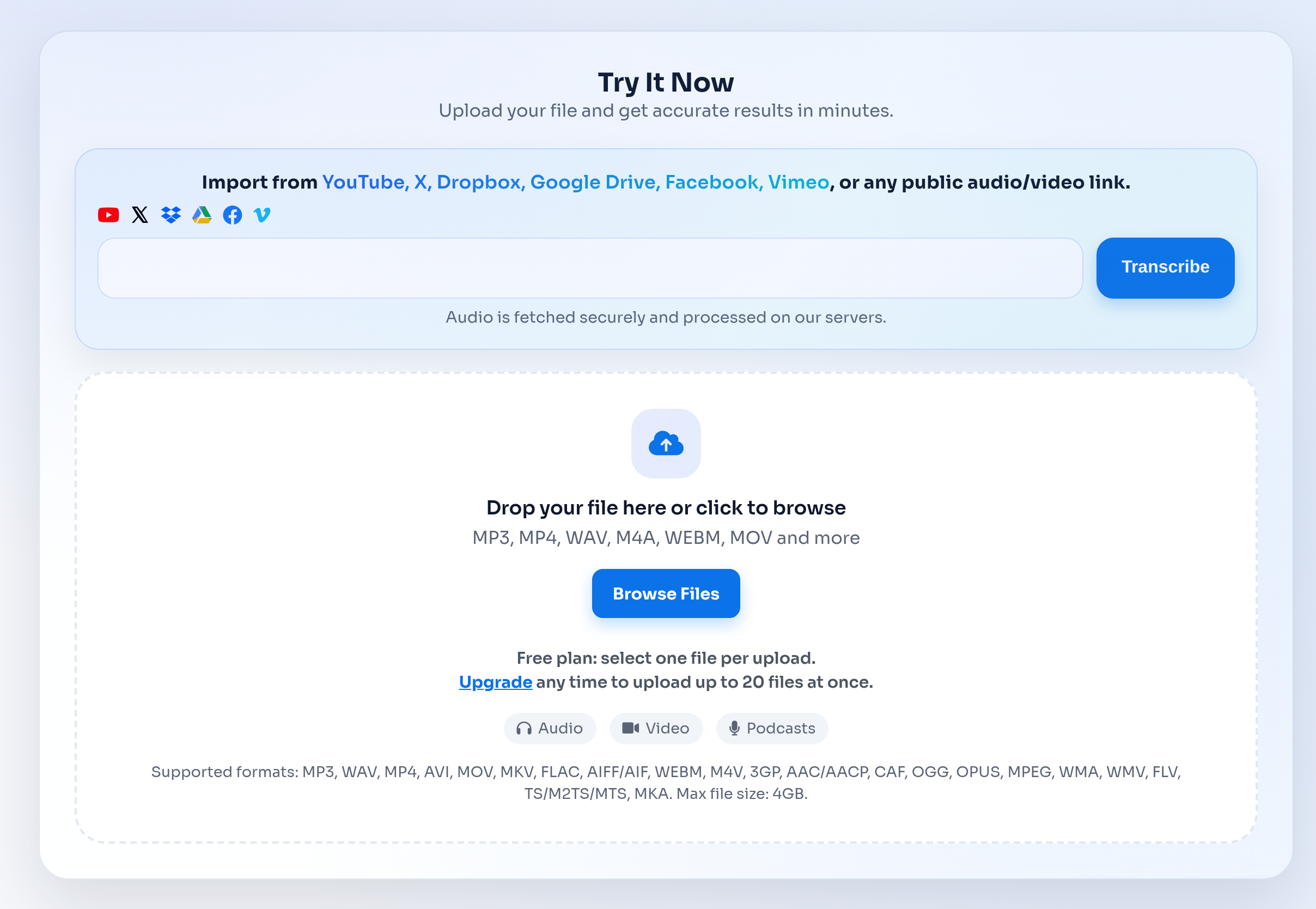
To transcribe a voice memo, upload the audio file using the form above. The AI processes the recording and returns a text transcript with punctuation, paragraph breaks, and optional timestamps.
This works with voice memos from any device — iPhone Voice Memos (M4A), Android voice recorders (MP3, OGG, AAC), desktop recording apps, and any other audio format.
- Upload a voice memo from iPhone, Android, or desktop — all common audio formats supported.
- Get a complete transcript with punctuation and paragraph breaks in minutes.
- Review the transcript online, then export as TXT, DOCX, or SRT.
Transcribe voice memo on iPhone
To transcribe a voice memo on iPhone, open the Voice Memos app, find the recording, tap the share button, and save or send the M4A file. Then upload it here to get a text transcript.
iPhone voice memos are saved as M4A files, which this tool handles natively. No conversion or extra software is needed — upload the file directly from your phone or computer.
- iPhone Voice Memos are saved as M4A — upload directly without conversion.
- Works with voice memos of any length. Free users can transcribe up to 30 minutes per file.
- AirDrop or email the voice memo to your computer for faster upload of longer recordings.
Voice memo transcript export options
After transcribing your voice memo, export the transcript in the format that fits your workflow. TXT works for quick notes and search, DOCX for editing and sharing, and SRT for timed captions.
Translate the voice memo transcript into 100+ languages when you need to share notes with international teams or create multilingual records.
- TXT — plain text for notes, archives, and full-text search.
- DOCX — formatted document for reports, editing, and handoff.
- SRT — timed captions when the voice memo supports a video or presentation workflow.