Podcast MP3 files
Turn published or pre-release podcast audio into transcripts, show notes, searchable archives, and quote banks.
Convert MP3 files to accurate text transcripts with AI.
Upload your file and get accurate results in minutes.
MP3 to Text conversion for podcasts, interviews, and meetings.
Upload MP3 files of any length (up to 4 GB) and get clean, readable transcripts.
Add timestamps and speaker labels, then export as TXT or SRT.
Specific workflows for teams, creators, researchers, educators, and operations users.
Turn published or pre-release podcast audio into transcripts, show notes, searchable archives, and quote banks.
Convert customer interviews, research interviews, journalism audio, and hiring conversations into reviewable text.
Make MP3 lectures, class recordings, field notes, and voice memos easier to search and summarize.
From upload to transcript export without manual copy-paste cleanup.
Add an MP3 recording up to 4 GB. Clear audio, separated speakers, and lower background noise usually produce better transcript quality.
Use timestamps and speaker options to navigate long MP3 files such as podcasts, interviews, lectures, and recorded calls.
Download TXT or DOCX for editing and archiving, or export SRT when the MP3 transcript supports a video or caption workflow.
MP3 is a common format for podcasts, calls, and lectures, so the page should answer size, quality, and export questions before upload.
Max upload size
Up to 4 GB per file.
Free allowance
Free users can upload up to 3 files per day, with a 30-minute duration limit per file.
Paid workflow
Unlimited plans support longer files and batch uploads for heavier transcription work.
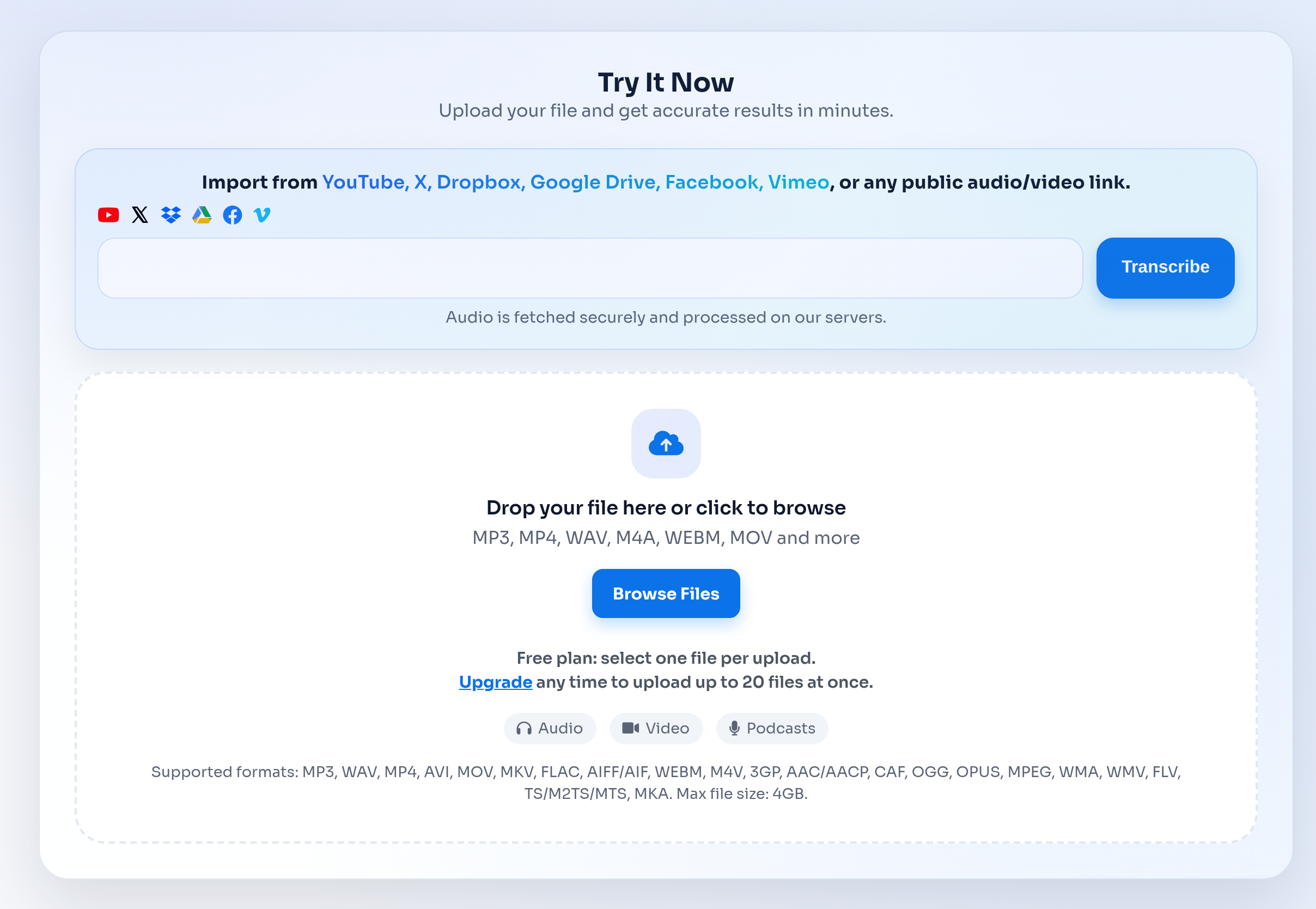
The MP3-to-text workflow is built for recorded files: upload once, review the transcript, then export text or subtitle formats.
Transcription often involves client calls, internal meetings, interviews, or class material. These pages should make the handling model clear before users upload.
A dedicated MP3 transcription workflow is useful when the main job is converting a saved audio file into editable text.
| Feature | TranscribeText | Typical alternatives |
|---|---|---|
| Recorded file uploads | Upload MP3, MP4, M4A, WAV, MOV, WebM, and other common audio/video files. | Some tools focus on live meeting capture or require a platform-specific workflow. |
| Export formats | TXT, SRT, DOCX, timed TXT, and speaker-labeled outputs when available. | Export options vary by provider and plan. |
| Async review | Start a transcription job, leave the page, and return to history when the transcript is ready. | Manual workflows often require waiting, copying, and reformatting. |
| MP3 quality handling | Works best with clear speech, reasonable volume, and limited background noise. | Manual transcription can handle poor audio but is usually slower and more expensive. |
Everything you need to know about MP3 to Text for fast, accurate transcripts..
Upload the MP3 file, start transcription, review the generated text, then export the transcript as TXT, DOCX, SRT, or timed text.
Yes. TranscribeText supports files up to 4 GB. Free users can test shorter MP3 files within the free duration and daily upload limits.
Yes. Export SRT when you need captions for a video, podcast clip, webinar, course, or social post that uses the MP3 audio.
Yes. MP3 transcription is useful for interviews, podcast episodes, meetings, lectures, voice memos, and call recordings.
Use the clearest recording available, reduce background noise, avoid overlapping speakers when possible, and keep the microphone close to the speaker.
Explore other transcription workflows that pair well with MP3 to Text for fast, accurate transcripts..