How to convert MP4 to text
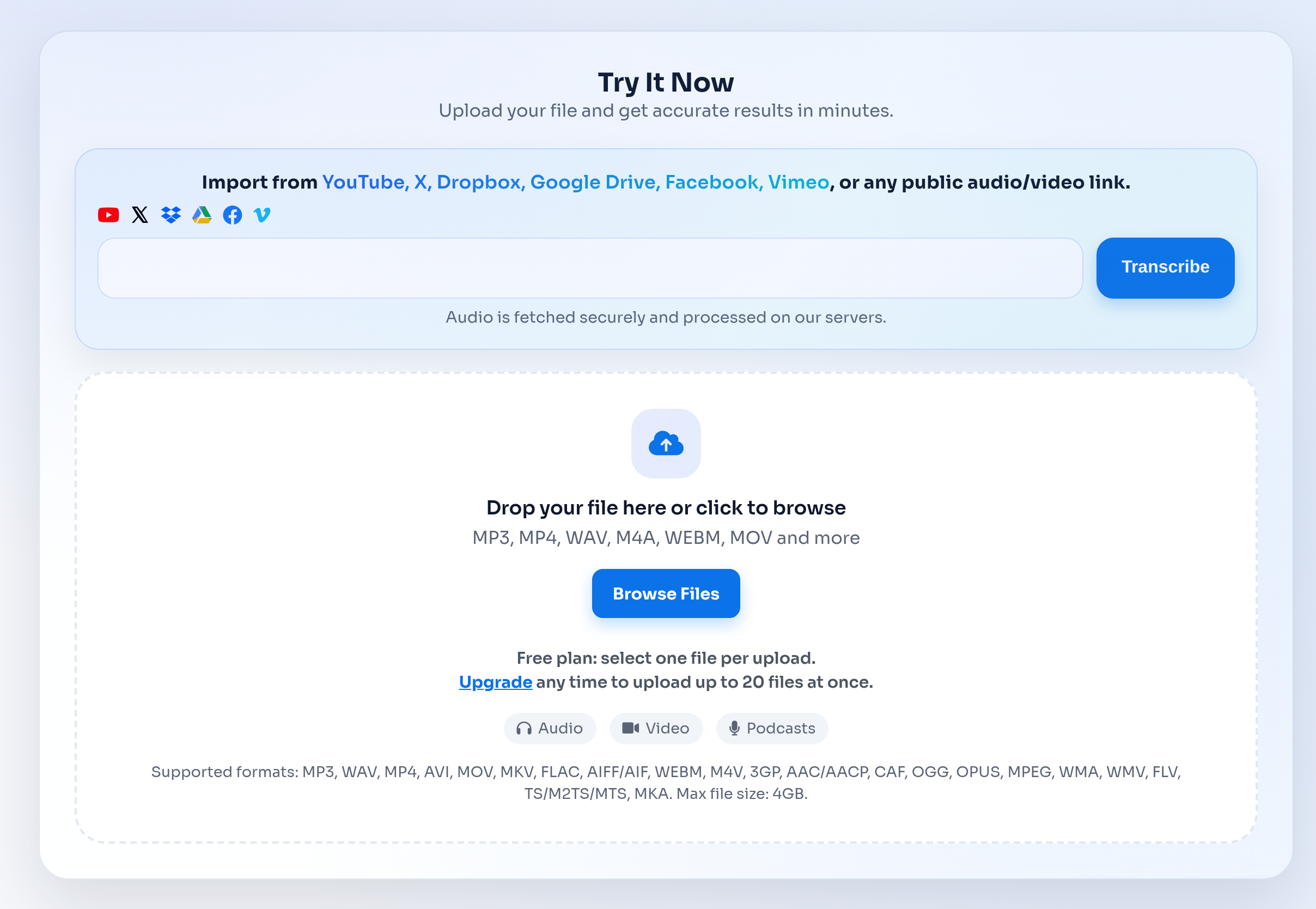
Converting an MP4 to text takes three steps: choose the MP4 file in the upload box at the top of this page, start the transcription, and download the transcript when it is ready. You do not need to install software, convert the video to MP3 first or create an account.
Behind the scenes, the speech recognition model only listens to the MP4's audio track. That is why the page extracts the audio from large MP4 files in your browser before uploading: the transcript is identical, but you upload far less data and the job starts sooner.
- Works with MP4 files from Windows, Mac, iPhone, Android, OBS, Loom, Zoom, Teams and most cameras.
- The spoken language is detected automatically across more than 100 languages.
- M4V and MOV files work the same way, since they use the same kind of container.
How to convert MP4 audio to a text file
If what you need is a plain text file, download the transcript as TXT once the job is finished. Choose whether each line should start with a timestamp: timestamps help when you need to find a quote in the video again, while a clean TXT without them is easier to paste into notes, an email or a blog draft.
For a document you will edit, share or print, download DOCX instead. For captions, download SRT: the numbered, timed subtitle file opens in YouTube Studio, Premiere Pro, DaVinci Resolve, CapCut and VLC.
- TXT: plain text for notes, search, AI summaries and quick copy-paste.
- DOCX: an editable Word document for reports, interviews and client handoff.
- SRT: timed captions you can upload next to the same MP4.
Why large MP4 files upload faster here
Video is what makes an MP4 big. A 30-minute 1080p recording can be 500 MB or more, while its audio track is often under 30 MB. When you select an MP4, M4V or MOV file over 100 MB, the page loads a small FFmpeg engine (ffmpeg.wasm) in your browser, copies the audio stream into an M4A file without re-encoding it, and uploads only that file. The video frames never leave your computer.
Copying the audio takes a few seconds even for long recordings. If the browser cannot do it, for example because the MP4 has no audio track or uses an unusual audio codec, the page simply uploads the original MP4 and the transcription runs as usual. Files up to 4 GB are accepted either way.
Tips for a more accurate MP4 transcript
Accuracy depends on the sound, not the picture: clear speech close to the microphone gives near word-for-word text.
- If a recording has several speakers, turn on speaker labels before you upload so each turn is easy to follow.
- Check names, numbers and technical terms before you publish the transcript.
- If the MP4 contains more than one audio track, the first track is transcribed; export the right track first if you need a different one.